Passwords remain one of the most widely used methods of protecting digital accounts. People use them to access email, banking services, social media platforms, shopping websites, cloud storage, workplace systems, educational portals and countless other online services. A password is often the first barrier between a user's private information and someone attempting to access it without permission.
Despite their importance, passwords are frequently managed poorly. Many people reuse the same password across multiple websites, choose predictable combinations, share credentials with others or store passwords in unsecured notes. Some continue using passwords that were created years ago, even when the associated service has experienced a security incident. These habits make accounts easier to compromise.
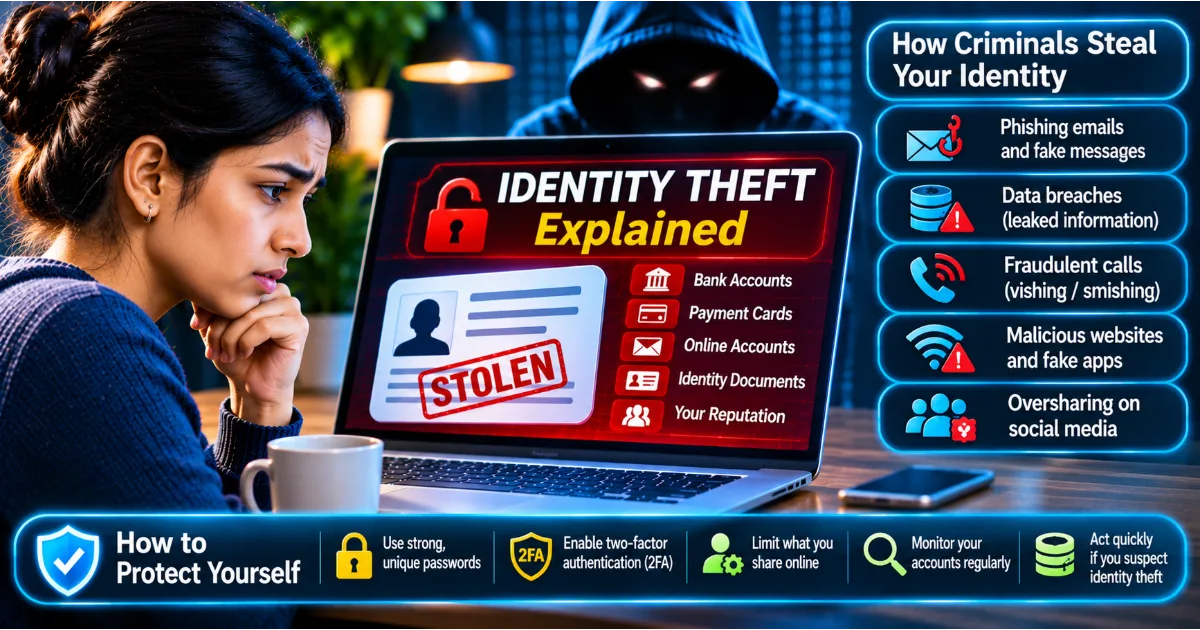
Cybercriminals understand how people behave online. They use stolen credentials, phishing websites, automated password guessing, malicious software and social engineering to gain access to accounts. In many cases, attackers do not need to break into a system through a complicated technical vulnerability. They simply need a valid password that has been exposed, guessed or obtained through deception.
A compromised password can have consequences beyond one account. If the same credentials are used on several services, an attacker may attempt to access email, financial accounts, cloud storage and other platforms. A compromised email account is particularly dangerous because it may allow criminals to reset passwords and take control of connected services.
Strong password security is therefore an essential part of cybersecurity awareness. It involves creating unique credentials, using password managers, enabling multifactor authentication, recognising phishing attempts and responding quickly when a password may have been exposed.
Continue Reading
This article explains what makes a password secure, how attackers compromise passwords, how password managers work, how to create a practical password strategy and what to do if an account is compromised.
Why Password Security Matters
A digital account often contains more information than users realise. An email account may hold private conversations, invoices, password reset messages, identity documents and links to other services. A shopping account may store delivery addresses, purchase histories and payment preferences. A social media account may contain private messages, photographs and personal contacts.
If someone gains unauthorised access, the consequences may include identity theft, financial fraud, privacy violations, impersonation and reputational damage. An attacker may send fraudulent messages to contacts, publish private information, change account recovery details or use the account to distribute malicious links.
For businesses, compromised employee credentials can create a route into internal systems. An attacker may access customer records, confidential documents, financial applications or administrative tools. If an account has excessive permissions, the impact may extend across an entire organisation.
Passwords are not perfect security controls, but they remain an important part of account protection. The goal is to make passwords difficult to guess, difficult to obtain through deception and difficult to reuse across different services. Additional controls such as multifactor authentication and passkeys can provide stronger protection.
What Makes a Password Strong?
A strong password should be difficult for another person or automated tool to guess. It should not rely on predictable information, common patterns or details that can be found through public profiles.
Password Length
Length is one of the most important characteristics of a password. Longer passwords generally provide more possible combinations, making them harder to guess through brute-force attacks.
A short password may be vulnerable even when it includes numbers and symbols. For example, a predictable word followed by a simple number may be easy for automated tools to test.
A longer passphrase made from unrelated words can be easier to remember while providing a much larger search space. The exact requirements depend on the service, but using a long, unique password is a sound general approach.
Unpredictability
A password should not follow obvious patterns. Names, birthdays, phone numbers, common phrases, keyboard sequences and familiar substitutions are poor choices.
Replacing the letter "a" with "@" or the letter "o" with "0" does not necessarily make a common password secure. Attackers use password dictionaries and rule-based techniques that account for many predictable substitutions.
Choose a password that does not reveal personal information and is not based on a phrase commonly used online.
Uniqueness
Every important account should have its own password. This is just as important as creating a strong password.
If one website experiences a data breach, criminals may obtain usernames and passwords from that service. They may then test those credentials on other popular platforms. This technique is called credential stuffing.
A unique password prevents a password exposed on one website from automatically becoming the key to another account.
Avoid Personal Information
Do not use your name, date of birth, phone number, home address, family members' names or other easily discovered details.
Criminals may collect personal information from social media, public records, previous breaches or other sources. Passwords based on these details can be easier to guess than users expect.
Avoid Reusing Old Passwords
A password that was previously used on another account should not be recycled. It may already exist in an old breach database or have been exposed through an insecure application.
When creating a new account, generate a fresh password rather than modifying an old one slightly.
Common Password Mistakes That Put Accounts at Risk
Many account compromises happen because of preventable password habits.
Using the Same Password Everywhere
Password reuse is one of the most dangerous habits in digital security. If a criminal obtains one password, they may try it on email, banking, shopping, social media and work services.
A person may believe that a small shopping website is not important enough to require a unique password. However, a compromised shopping account may expose an email address, delivery address and credentials that are reused elsewhere.
Use a separate password for every service, especially accounts that contain sensitive information.
Choosing Predictable Passwords
Passwords based on common words, simple number sequences, names or keyboard patterns are easier to guess. Attackers maintain lists of frequently used passwords and use automated tools to test them.
Avoid obvious combinations such as a name followed by a year, a common word followed by a symbol or a simple sequence of characters.
Writing Passwords in Unsecured Places
People sometimes store passwords in plain text files, notebooks left in public areas, email drafts or unprotected phone notes.
These methods can expose credentials if a device is lost, a shared computer is accessed or an account is compromised.
A reputable password manager is generally a safer option because it stores credentials in an encrypted vault protected by a master password and other security controls.
Sharing Passwords Through Messages
Sending passwords through ordinary email, messaging applications or workplace chat can create unnecessary exposure. Messages may be forwarded, stored on multiple devices or accessed through compromised accounts.
Where a service supports separate user accounts and permissions, use those features rather than sharing one login. For business access, use an approved credential-sharing system when sharing is genuinely necessary.
Ignoring Security Notifications
Unexpected login alerts, password reset messages and breach notifications may indicate suspicious activity. Ignoring them can allow an attacker more time to take control of an account.
Review alerts carefully, but verify them through the official application or website. Do not click unexpected links simply because a message appears to be a security warning.
Changing Passwords Without a Reasonable Strategy
Changing passwords frequently without evidence of compromise can encourage users to create predictable variations or write passwords down insecurely. A better approach is to use strong, unique passwords, enable multifactor authentication and change a password promptly when there is evidence that it may have been exposed.
Follow the security guidance of the relevant service or organisation. Passwords should also be changed when a person leaves a role where credentials were shared or when an administrator identifies a security risk.
How Cybercriminals Steal Passwords
Understanding the methods used to obtain passwords helps users recognise and avoid common attacks.
Phishing Attacks
Phishing involves deceptive messages designed to trick people into revealing information. A criminal may send an email that looks like it came from a bank, employer, social media platform or cloud storage provider.
The message may claim that an account has been suspended or that suspicious activity requires immediate verification. A link leads to a fake login page that looks similar to the real service.
When a victim enters their credentials, the attacker captures them. Some phishing attacks also attempt to obtain multifactor authentication codes or trick users into approving fraudulent sign-in requests.
Always access important services through their official applications or by entering the known website address. Do not trust a login page merely because it displays a familiar logo.
Credential Stuffing
Credential stuffing uses usernames and passwords stolen from one service to attempt access to other services. Criminals automate these attempts because many people reuse passwords.
The best defence is password uniqueness. If every account has a different password, a breach on one website is less likely to compromise other accounts.
Brute-Force Attacks
A brute-force attack involves systematically trying possible password combinations until the correct one is found. Automated tools can perform large numbers of attempts.
Long and unpredictable passwords make this process more difficult. Many services also use rate limits, account lockouts, suspicious-login detection and other protections to reduce repeated attempts.
Dictionary Attacks
A dictionary attack tests passwords based on common words, phrases and known password patterns. Attackers may use variations involving names, dates, numbers and predictable character substitutions.
Avoid using common words or phrases without sufficient unpredictability. Long, randomly generated passwords are generally a stronger option.
Keylogging Malware
Keyloggers are malicious programs designed to record keyboard input. If a keylogger is installed on a device, it may capture passwords as the user types them.
Malware can reach devices through malicious downloads, suspicious attachments, compromised websites or fake applications. Keep devices updated, use reputable security tools and avoid installing software from untrusted sources.
Social Engineering
Social engineering manipulates people into disclosing credentials or approving access. A criminal may impersonate a technical support agent, colleague, bank employee or administrator.
The attacker may create urgency by claiming that an account will be closed or that a security problem must be resolved immediately.
Never share passwords or authentication codes with an unexpected caller or message sender. Verify requests through a separate trusted channel.
Data Breaches
A website or application may store user credentials and later experience a security breach. If passwords are stored incorrectly or exposed through other weaknesses, criminals may obtain them.
Well-designed services should store passwords using secure password hashing methods with appropriate salts and work factors, rather than keeping them as readable text. However, users should not assume every service has implemented these protections correctly.
Unique passwords reduce the impact if a particular service is compromised.
How to Create Strong Passwords
Creating strong passwords does not need to be complicated. The most important principles are length, unpredictability and uniqueness.
Use a Long Passphrase
A passphrase combines multiple words into a longer password. Choose words that are unrelated and not connected to your personal life. The combination should be difficult to predict.
Avoid using famous quotations, song lyrics, common sayings or phrases that may appear in public information. A password manager can generate a random passphrase if the service supports it.
Use Randomly Generated Passwords
For most online accounts, randomly generated passwords are an excellent choice. A password manager can create long combinations of letters, numbers and symbols that would be difficult to guess.
The advantage is that users do not need to invent or remember every password. They only need to protect access to the password manager itself.
Follow the Service's Security Requirements
Some websites impose limits on password length or restrict certain characters. Follow the service's requirements while choosing the longest and most unpredictable password it allows.
Avoid shortening a generated password simply because it is inconvenient to type. Use a password manager or supported autofill feature when appropriate.
Use Separate Passwords for Critical Accounts
Email, banking, cloud storage, business administration and password manager accounts deserve particular attention.
Use unique credentials for these accounts and enable multifactor authentication. If a service offers passkeys, consider using them as an alternative to traditional passwords.
What Is a Password Manager?
A password manager is an application or service designed to create, store and organise login credentials securely. Instead of remembering dozens of passwords, a user protects a digital vault containing unique credentials for different websites and applications.
A password manager can generate long, random passwords and fill them into supported login forms. Many products also provide secure notes, password health reports, breach alerts and synchronisation across approved devices.
The main advantage is that users no longer need to reuse passwords because remembering every unique credential would be difficult.
How Does a Password Manager Work?
Most password managers store credentials in an encrypted vault. The user unlocks the vault using a master password, biometric authentication or another supported method.
The manager decrypts the stored information when authorised access is granted. Depending on the product, the vault may synchronise between devices through a secure cloud service or remain stored locally.
A well-designed password manager uses strong encryption and secure key management. Users should still review the provider's security practices and understand how account recovery works.
What Is a Master Password?
The master password protects access to the password manager. It is particularly important because the vault may contain credentials for many other accounts.
Choose a long, unique master passphrase that is not used anywhere else. Do not share it or store it in an unsecured location.
Where supported, enable multifactor authentication for the password manager account. Store recovery codes securely so that access can be restored if the primary authentication method becomes unavailable.
Benefits of Using a Password Manager
A password manager makes it easier to use unique passwords across different services. It reduces the temptation to reuse credentials and can generate passwords that are difficult to guess.
It can also help users identify weak or reused passwords. Some products alert users when a password appears in known breach information, although these alerts should be treated as a prompt to investigate rather than proof that an account has been accessed.
Password managers can save time through secure autofill, particularly when users have many accounts.
Choosing a Password Manager
Choose a reputable password manager with a transparent security model, strong encryption, reliable updates and clear recovery procedures.
Review whether it supports the devices and browsers you use. Check whether it offers multifactor authentication, secure synchronisation, password generation and export options.
Understand what happens if you lose access to the master password or account. A password manager should improve security without creating an unmanaged single point of failure.
Avoid installing unknown password manager applications promoted through suspicious advertisements or unofficial downloads. Use the official website or trusted application store.
How to Use a Password Manager Safely
A password manager is useful only when it is configured and used properly.
First, protect the vault with a strong, unique master password. Enable multifactor authentication if available and secure the email account associated with the service.
Second, import or add your existing credentials carefully. Review the list for reused, weak or outdated passwords. Replace them with unique generated passwords, starting with your most important accounts.
Third, install browser extensions or mobile applications only from official sources. Check that autofill is being used on the correct website. Be cautious if a page unexpectedly asks the password manager to fill credentials on an unfamiliar domain.
Fourth, keep the password manager updated. Review active devices and sessions periodically. Remove devices you no longer use and investigate unfamiliar access.
Finally, maintain a secure recovery plan. Store recovery codes or emergency information in a protected location that is accessible when needed but not exposed to unauthorised people.
What Is Multifactor Authentication and Why Does It Matter?
Multifactor authentication, often called MFA, requires more than one type of evidence to verify a user's identity. Two-factor authentication, or 2FA, is a form of MFA that uses two factors.
The factors commonly include something the user knows, such as a password; something the user has, such as a security key or authenticator device; or something the user is, such as a fingerprint or face used by a supported device.
If a criminal steals a password, MFA may prevent access because the attacker does not possess the additional factor.
Common Types of Authentication Factors
Authenticator applications generate time-based verification codes. These codes change periodically and can provide stronger protection than password-only access.
Hardware security keys provide a physical authentication method. When correctly implemented, they can offer strong resistance to phishing because authentication is linked to the legitimate website.
Passkeys use public-key cryptography and are designed to replace traditional passwords on supported services. They can be tied to a device or synchronised through an approved ecosystem, depending on the implementation.
SMS verification codes are widely supported and can provide an additional layer beyond a password. However, they may be vulnerable to SIM swap attacks and other phone-number-related risks. Prefer stronger phishing-resistant methods when available.
Protect Against MFA Fatigue
Some attackers repeatedly send authentication approval requests, hoping that a tired or confused user will approve one accidentally. This is sometimes called MFA fatigue or push bombing.
Never approve a sign-in request that you did not initiate. If repeated unexpected prompts appear, change the password from a trusted device, review account activity and contact the service provider if necessary.
What Is a Passkey?
A passkey is a modern sign-in credential based on public-key cryptography. Instead of entering a traditional password, a user authenticates through a supported device or password manager using a local method such as a fingerprint, face recognition or device PIN.
The website or application stores a public key, while the corresponding private key remains protected by the user's device or credential provider. During authentication, the service verifies a cryptographic response without requiring the user to send a reusable password.
Passkeys can reduce the risks associated with password reuse, phishing and credential theft. They are not a reason to ignore device security. Users should protect the devices and accounts that store or synchronise their passkeys and understand the available recovery methods.
When a service supports passkeys, they can be a strong option for protecting important accounts.
How to Protect Your Email Account
Email accounts deserve special protection because they are frequently used to reset passwords and verify account changes.
Use a unique password and enable multifactor authentication. Review recovery phone numbers, backup email addresses and trusted devices. Remove unfamiliar sessions and connected applications.
Be careful with email forwarding rules. Attackers who gain access may create rules that secretly forward incoming messages to an external address or hide security notifications.
Review recent account activity and security settings periodically. If you suspect compromise, secure the account immediately and check whether other services may have been accessed through it.
Password Security for Businesses
Businesses must manage passwords across employees, applications, devices and administrative systems. Weak credential practices can expose customer information, internal documents and essential operations.
Establish a Password Policy
A password policy should encourage long, unique passwords and prohibit unsafe sharing. It should also explain how employees can use approved password managers and multifactor authentication.
Policies should align with current security guidance and the organisation's actual risk. Avoid arbitrary requirements that encourage predictable password changes or insecure workarounds.
Use Single Sign-On Where Appropriate
Single sign-on allows employees to access multiple approved services through a central identity provider. It can improve account management and reduce the number of separate passwords employees need to manage.
However, the central identity account becomes particularly important. Protect it with strong authentication, conditional access controls, monitoring and carefully managed administrative permissions.
Apply Least-Privilege Access
Employees should receive only the permissions needed for their roles. Administrative accounts should be separate from everyday accounts where practical.
Review access when employees change roles or leave the organisation. Remove unnecessary accounts and disable unused credentials.
Protect Service and Application Credentials
Businesses use service accounts, API keys, automation credentials and other secrets that are not intended for ordinary human login. These should be stored in approved secrets management systems rather than hard-coded into source code or placed in public repositories.
Rotate credentials when they may have been exposed and restrict their permissions to the minimum required.
Monitor Suspicious Sign-In Activity
Organisations should monitor unusual login patterns, repeated failed attempts, unexpected locations, unfamiliar devices and suspicious privilege changes.
Alerts should be investigated through a documented process. Logging and monitoring should be designed with appropriate privacy and legal considerations.
Train Employees
Employees should understand phishing, password reuse, fake login pages and authentication approval requests. They should know how to report suspicious activity without delay.
Training should include realistic examples and clear guidance about approved password storage and account recovery methods.
What to Do If Your Password Is Stolen or Exposed
If you believe a password has been compromised, act quickly. The right response depends on which account is affected and whether an attacker has already gained access.
1. Change the Password Through the Official Service
Use the official website or application to change the password. Do not follow links in unexpected emails or messages claiming to provide an urgent password reset.
If you cannot access the account, use the official account recovery process.
2. Change Reused Passwords Elsewhere
If the exposed password was used on other services, change it on every affected account. Give priority to email, financial accounts, cloud storage, social media and work systems.
Use a different password for each account.
3. Review Active Sessions and Devices
Check where the account is signed in. Sign out of sessions you do not recognise and remove unfamiliar devices.
Some services provide an option to sign out of all devices. Use it when appropriate, especially if you suspect an attacker may still have access.
4. Check Recovery Information
Review recovery email addresses, phone numbers, trusted devices and security settings. Remove anything you do not recognise.
Attackers may change recovery details to prevent the legitimate owner from regaining control.
5. Enable or Reset Multifactor Authentication
Enable MFA if it is not already active. If you suspect that an authentication method has been compromised, review and reset it through the service's official security settings.
Do not approve unexpected authentication requests.
6. Review Account Activity
Look for unfamiliar messages, purchases, transfers, downloads, connected applications or account changes.
If the account contains financial information, contact the relevant financial institution through an official channel and report suspicious transactions promptly.
7. Scan the Device if Malware Is Suspected
If you believe a keylogger or other malware may have captured the password, use a trusted security solution to examine the device. Keep the operating system and applications updated.
For serious infections, seek qualified technical assistance. Changing passwords from a compromised device may expose the new credentials as well.
8. Inform Your Organisation if a Work Account Is Affected
Employees should report suspected credential exposure through their organisation's security process. Do not hide a mistake or delay reporting.
Security teams may need to revoke sessions, rotate credentials, investigate access logs and determine whether business information was exposed.
Common Password Security Myths
Myth 1: Adding a Symbol Automatically Makes a Password Strong
A common word followed by a predictable symbol may still be easy to guess. Length and unpredictability matter more than relying on a familiar pattern.
Myth 2: One Strong Password Is Enough for Every Account
Even a strong password can be exposed through a data breach or phishing attack. Reusing it across multiple services allows one compromise to affect many accounts.
Myth 3: Password Managers Are Only for Technical Experts
Password managers are designed for ordinary users as well as professionals. They can make unique passwords easier to manage and reduce the temptation to reuse credentials.
Myth 4: MFA Makes Password Security Unnecessary
MFA provides an additional layer of protection, but users should still maintain strong, unique passwords and avoid phishing. Attackers may also target authentication approvals or account recovery processes.
Myth 5: Changing Passwords Every Few Weeks Is Always Safer
Frequent changes without a reason can lead to predictable variations and poor storage habits. Use strong, unique passwords and change them promptly when they are exposed, compromised or required by a legitimate security policy.
Myth 6: A Website With a Secure Connection Is Always Safe
A secure connection protects data in transit, but it does not prove that the website is genuine. Phishing websites can also use encrypted connections. Verify the domain and use trusted access methods.
Building a Practical Password Security Routine
A good password strategy should be easy enough to maintain consistently. Begin by identifying your most important accounts, including your primary email, financial services, cloud storage, social media and work systems.
Use a reputable password manager to generate and store unique passwords. Protect its vault with a strong master passphrase and multifactor authentication. Replace reused passwords, starting with accounts that could expose other services.
Enable MFA or passkeys wherever supported. Review account recovery information and remove old devices or applications. Keep your operating system, browser and password manager updated.
Check important account activity periodically. Respond promptly to legitimate security alerts, but verify them independently. If you suspect a compromise, change the affected password, review active sessions and investigate whether other accounts may be exposed.
For families, establish simple rules about not sharing passwords or authentication codes and not approving unexpected login prompts. For businesses, use approved credential management, role-based access and clear reporting procedures.
Conclusion
Password security is one of the foundations of online safety. Weak, reused or exposed passwords can allow criminals to access personal accounts, steal information, impersonate users and disrupt business operations. A compromised credential may also become a route into several other services when the same password is reused.
Strong password protection requires more than adding a number or symbol to a familiar word. Use long, unpredictable and unique passwords. A reputable password manager can generate and store them securely, while multifactor authentication and passkeys can add stronger protection against unauthorised access.
Protect your primary email account carefully, review recovery settings and never share passwords or authentication codes with unexpected callers or message senders. If a password may have been exposed, change it through the official service, update reused credentials, review active sessions and investigate suspicious activity.
Good password habits do not require advanced technical knowledge. They require consistency and awareness. Every unique password, secure authentication method and careful response to suspicious activity makes it harder for criminals to take control of your digital identity.
#PasswordSecurity #CybersecurityAwareness #PasswordManager #OnlineSafety #AccountProtection